 IGUANIFY
Multi-Language Subtitles for Shorts: Quick Tool + Workflow

The fastest path to multi-language subtitles for shorts is a three-step loop: auto-transcribe with an AI tool, translate and spot-check, then export either as a burned-in MP4 or a separate SRT/VTT file. For creators who want that entire process handled inside a finished, platform-ready episode, Iguanify delivers captions and localized exports as part of the production deliverable. For everyone else, the shortlist below covers every major workflow shape.
Your immediate 3-step runbook:
- Transcribe: Upload your clip to CapCut, VEED, Kapwing, or Auris AI. AI auto-transcription typically hits 85–90% accuracy on clear English speech, so budget a few minutes to fix errors before translating.
- Translate: Run the transcript through the tool’s built-in AI translator, then do a human spot-check for slang or brand terms. For mission-critical content, order human translation through Rev.
- Export: Choose burned-in MP4 when the platform limits you to one caption track (TikTok), or SRT/VTT when the platform supports separate caption uploads (YouTube Shorts). Common export formats: SRT, VTT, TTML, and burned-in MP4.
Key Takeaways
The most reliable workflow for multi-language subtitles on shorts combines AI auto-transcription, a human spot-check for the languages that matter most, and a burned-in export for platforms that limit you to one caption track.
| Point | Details |
|---|---|
| Start with clean audio | Transcription accuracy drops sharply with background noise; fix audio before uploading. |
| Burn in for TikTok | TikTok supports one caption track per upload, so produce a separate burned-in MP4 per language. |
| AI + human for key content | AI translation is fast and cheap; add a native speaker review for brand-sensitive or regional videos. |
| Style for mobile readability | Bold font, high contrast, 6–8 words per line, minimum 1 second on screen per subtitle block. |
| Iguanify for serialized creators | Iguanify delivers finished episodes with captions and localized exports included, no separate subtitle workflow needed. |
Table of Contents
- Best tools for multi-language subtitles on shorts
- How to add multi-language subtitles to a short: a 6-step workflow
- How to choose the right subtitle workflow for shorts
- Subtitle formatting and accessibility best practices for shorts
- AI auto-translate vs. human translation: when each makes sense
- Iguanify: finished episodes with captions already built in
- Sources
Best tools for multi-language subtitles on shorts
A few notes on platform fit:
- Burned-in vs. SRT: TikTok supports one caption track per upload, so burned-in subtitles are the reliable choice for translated versions. YouTube Shorts and Instagram Reels accept SRT uploads, giving viewers a toggle option.
- Human translation: Rev’s pricing varies depending on the language and length, and the service can deliver subtitle files directly to platforms like YouTube. Worth it for brand-sensitive or culturally nuanced content.
- Language coverage: Before committing to any AI tool for a non-English target language, check the engine’s supported language list. Azure Speech Service’s language support page is a reliable reference for what AI transcription and translation models actually cover.
- Vertical format: Subvideo.ai is purpose-built for 9:16 content and offers fast, medium, and high recognition modes so you can trade speed for accuracy depending on the video.
How to add multi-language subtitles to a short: a 6-step workflow
Follow these steps after your video is shot and edited.
-
Prepare your master clip. Export a clean, color-graded MP4 at the platform’s preferred resolution (1080×1920 for vertical). Clear audio is the single biggest factor in transcription accuracy, so remove background noise before uploading.
-
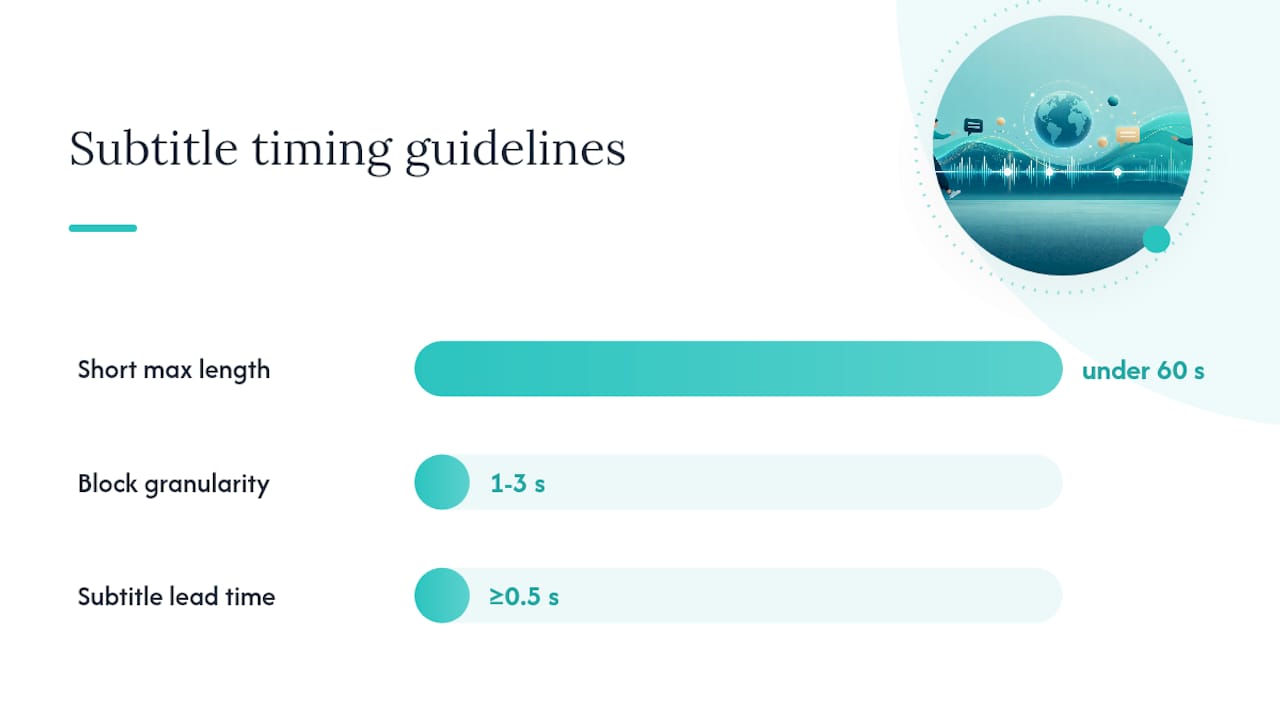
Run auto-transcription. Upload to your chosen tool (VEED, Kapwing, Auris AI, or CapCut). The tool generates a transcript with timecodes. For fast-cut shorts under 60 seconds, aim for timecode granularity of 1–3 seconds per subtitle block.
-
Edit the transcript and timecodes. Read through the auto-generated text and fix proper nouns, brand names, and any mishear. Adjust timecodes so each line appears at least 0.5 seconds before the speaker finishes the phrase. Tools like Klipa AI offer word-level timing editors that make this step faster on fast-paced content.
-
Translate. Use the tool’s built-in AI translator for speed. For languages with significant slang or cultural context (Spanish regional variants, Brazilian Portuguese, Arabic dialects), run a human spot-check before finalizing. If the video is brand-critical, order a full human translation through Rev.
-
Style and position for short-form UI. Place subtitles in the lower-center safe zone, clear of platform UI overlays (TikTok’s like/comment buttons sit on the right; Instagram’s caption bar sits at the bottom). Use a bold, high-contrast font at 36–48px equivalent. Keep lines to 6–8 words maximum.
-
Export and upload. Two paths:
- Burned-in MP4: Required for TikTok translated versions (one caption track limit). Produce one export per language.
- SRT/VTT file: Upload alongside the video on YouTube Shorts or Instagram Reels for viewer-toggled captions.
Export formats at a glance:
- SRT: Universal, widely accepted, plain text with timecodes. Best default.
- VTT: Similar to SRT; preferred by some web players and Instagram.
- TTML: XML-based; used by broadcast and some platform APIs.
- Burned-in MP4: No separate file needed; guaranteed visible on every player.
Pro Tip: On fast-cut shorts, sync your subtitle breaks to the beat or cut point, not just the sentence end. A subtitle that changes frame exactly on a cut feels native to the video; one that lingers across a cut reads as an afterthought.
How to choose the right subtitle workflow for shorts
The right tool depends on four variables: where you edit, how many languages you need, how much accuracy matters, and how often you post.
Match your workflow to your situation:
- Quick mobile edits: CapCut handles single-tap auto-captions and basic translation on-device. Good for one-off posts where speed beats precision.
- Web batch processing: VEED and Kapwing let you process multiple clips in the browser, translate, style, and export SRT or burned-in MP4 without switching apps.
- High-accuracy, human translation: Rev is the right call when the content is brand-sensitive, legally relevant, or targeting an audience where a mistranslation would damage credibility. Per-minute costs are higher, but turnaround is predictable.
- Finished serialized episodes: Iguanify produces complete vertical episodes with captions and localized exports built into the deliverable, which removes the per-episode subtitling task entirely for creators running ongoing series.
Red flags to avoid in any tool:
- No SRT export option (locks you into burned-in only)
- No timing editor (you can’t fix auto-generated timecodes)
- Font and position locked with no override
- Language list under 30 languages for AI translation
- No free trial or test clip option before purchase
Pricing shapes to know:
- Free tiers on VEED, Kapwing, and CapCut are usable but add watermarks or cap export resolution. Paid plans typically start at $16–$18/month.
- Rev charges per minute of audio for human translation; the rate varies by target language.
- Iguanify uses a credit-pack model with no recurring subscription. You generate your show concept and cast for free before committing to a purchase.
Subtitle formatting and accessibility best practices for shorts
Styling for readability:
- Use white text with a dark drop shadow or semi-transparent background bar. Pure white on a bright background is unreadable on mobile.
- Font weight: bold or semi-bold. Thin fonts disappear on small screens.
- Font size: 36–48px equivalent at 1080p. Smaller than that and viewers watching on a phone at arm’s length will skip reading entirely.
- Keep subtitles in the lower-center safe zone, at least 10–15% from the bottom edge to clear platform UI on TikTok and Instagram.
Timing rules for fast-cut content:
- Maximum 6–8 words per line. Longer lines force viewers to read instead of watch.
- Minimum on-screen time: 1 second per line, even for short phrases. Anything shorter is physically unreadable.
- For content with rapid dialogue, split into two shorter lines rather than one long one.
Captions vs. subtitles: Captions include non-speech audio cues (music, sound effects, speaker identification); subtitles carry dialogue only. For accessibility, captions are the stronger choice. If your short has a key sound effect that drives the joke or the plot, label it: [upbeat music], [door slams].
Pro Tip: Before posting, watch your short on mute on both a phone and a tablet. If you can follow the story entirely from the subtitles alone, the timing and placement are right. If you lose the thread anywhere, that’s the line to fix.
AI auto-translate vs. human translation: when each makes sense
AI translation is near-instant and costs a fraction of human rates, but accuracy for clear English auto-captions typically sits around 85–90%, and that figure drops for accented speech, fast delivery, or technical vocabulary. Translation adds another layer of potential error on top of transcription.
Choose your route by content type:
- AI-only: Casual, high-volume content where a small error won’t damage your brand. Think daily vlogs, trend-response videos, or behind-the-scenes clips. Near-instant turnaround, minimal cost.
- AI + human spot-check: Marketing content, product launches, or videos targeting a specific regional audience. Run AI translation first, then have a native speaker review for slang, idioms, and tone. Adds a few hours but catches the errors that matter.
- Full human translation: Brand-critical campaigns, legal or medical content, or any video where a mistranslation would be embarrassing or harmful. Rev’s human translators deliver accurate subtitle files with per-minute pricing that varies by target language. Slower, but the output is reliable.
For non-English source languages or less common target languages, verify coverage before starting. The Azure Speech Service language list is the clearest public reference for what AI models actually support at the transcription and translation layer.
What actually trips creators up with multi-language subtitles
The mistake most creators make is treating subtitles as the last step. They finish editing, realize they need Spanish and Portuguese versions, and rush through translation without checking timecodes. The result is subtitles that lag behind the audio by half a second, which reads as unprofessional even to viewers who don’t speak the source language.

The quick win: burn in one guaranteed-visible caption version for your highest-priority language before you post anything. That single burned-in version will perform on every platform, every player, and every device without relying on the platform’s caption toggle. Test it muted. If it holds up, you’re ready.
Iguanify: finished episodes with captions already built in
The tools above all require you to manage subtitling as a separate production step. For creators running serialized vertical drama or episodic content, that step multiplies fast across episodes and languages.
Iguanify handles the entire production pipeline, from script to finished vertical episode, with captions and localized exports included in the deliverable. You don’t manage a separate subtitle file or a translation workflow per episode. The episode arrives ready to post on TikTok, YouTube Shorts, or Instagram, with consistent characters across every installment and full content ownership on your side.
If you’re producing one-off clips, the self-serve tools in this article are the right fit. If you’re building a channel with recurring episodes and need captions across multiple languages without adding hours of post-production per episode, Iguanify’s AI drama generator is worth a look. Generate your show concept and cast for free before committing to anything.
Sources
- Learn
- Riverside blog — How to add captions on TikTok
- PixScript blog — How to add subtitles to TikTok videos (2026)